



Nissan Frontier: Monitor, climate, audio, phone and voice recognition systems - Intelligent Around View Monitor
- Basic Information
- Intelligent Around View Monitor system operation
- Difference between predicted and actual distances
- How to park with predicted course lines
- Intelligent Around View Monitor system limitations
Basic Information Nissan Frontier
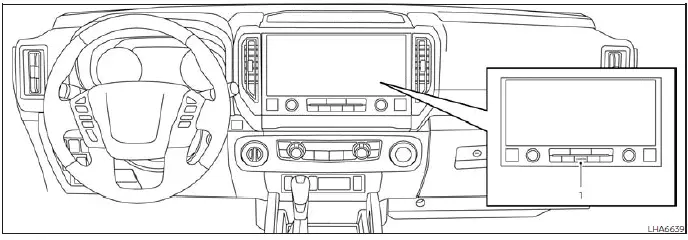
- CAMERA button
WARNING
- Failure to follow the operating instructions and safety precautions for the Nissan Frontier Intelligent Around View Monitor system may result in a collision causing serious injury, property damage, or death.
- The Nissan Frontier Intelligent Around View Monitor is designed as a driver-assistance feature only and
should never replace proper driving practices. Certain areas around the vehicle cannot be fully
monitored by the camera system.
In particular, objects located near the four corners of the Nissan Frontier may not always be visible in the bird's-eye view, front view, rear view, or other available camera displays.
Always check your surroundings directly, use mirrors, and verify that the area around the vehicle is clear before moving.
- The driver remains fully responsible for the safe operation of the Nissan Frontier during parking, reversing, maneuvering, and all other driving situations.
CAUTION
When cleaning dirt, mud, snow, ice, or road debris from the camera areas, avoid scratching or damaging the camera lenses. Damage to any camera lens may reduce image quality and affect proper operation of the Nissan Frontier Intelligent Around View Monitor system.
The Nissan Frontier Intelligent Around View Monitor system is designed to assist drivers during situations such as parking in confined spaces, maneuvering around obstacles, and parallel parking.
By combining images from multiple cameras positioned around the Nissan Frontier, the system provides enhanced visibility and a better understanding of the vehicle's surroundings.
The monitor displays multiple camera views in a split-screen configuration, allowing drivers to observe different areas around the vehicle simultaneously.
Depending on vehicle speed, gear position, and operating conditions, certain camera views may not always be available.
The Nissan Frontier Intelligent Around View Monitor is intended to improve driver awareness and convenience but should always be used together with direct visual observation.
Available views:
- Front view
Provides an approximately 150-degree wide-angle view of the area directly in front of the Nissan Frontier. This view can help identify obstacles, curbs, and objects located ahead of the vehicle. - Rear view
Provides an approximately 150-degree view behind the Nissan Frontier to assist when reversing and backing into parking spaces. - Bird's-eye view
Combines images from multiple cameras to create a virtual overhead view of the Nissan Frontier and its immediate surroundings, helping drivers position the vehicle more accurately. - Front-side view
Displays the area around and ahead of the front passenger-side wheel. This view is especially useful when approaching curbs, navigating narrow passages, or positioning the Nissan Frontier in tight spaces. - Rear-wide view
Provides an approximately 180-degree view behind the Nissan Frontier, offering improved visibility of cross traffic, pedestrians, and surrounding obstacles when backing out of parking spaces.
Each available view is designed to provide additional information that may not be visible through the mirrors alone, helping improve maneuvering confidence in challenging driving situations.
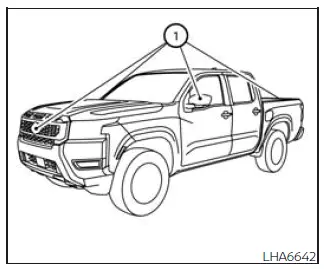
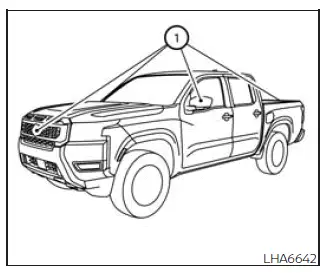
To generate the various camera perspectives, the Nissan Frontier Intelligent Around View Monitor system uses multiple strategically positioned cameras.
These cameras are mounted in the following locations:
- The front grille.
- Both exterior side mirrors.
- The tailgate 1.
The Nissan Frontier system electronically combines images from these cameras to create a comprehensive view of the vehicle's surroundings.
Maintaining clean camera lenses is important for optimal system performance. Dirt, snow, rain, mud, condensation, or debris on any camera may reduce image quality and affect the accuracy of displayed views.
The Nissan Frontier Intelligent Around View Monitor provides valuable assistance during parking and low-speed maneuvering, helping drivers better understand their surroundings while maintaining safe vehicle operation.
Intelligent Around View Monitor system operation Nissan Frontier 2022
Basic Information
With the ignition switch in the ON position, move the shift lever into the R (Reverse) position to activate the Nissan Frontier Intelligent Around View Monitor system.
When the camera system is initially activated and the bird's-eye view appears on the display, a flashing red icon (if so equipped) may be shown on the screen. This indicator confirms that the Nissan Frontier sonar assistance system is active and monitoring the surrounding area.
When the CAMERA button is used while the shift lever is positioned anywhere other than R (Reverse), the Intelligent Around View Monitor display will automatically return to the previously selected screen approximately three minutes later.
The Nissan Frontier Intelligent Around View Monitor is designed to provide additional visibility around the vehicle during low-speed maneuvering, parking, and reversing operations.
Available views
Basic Information
WARNING
- The Nissan Frontier distance guide lines and vehicle-width guide lines are intended for reference purposes only and are most accurate when the vehicle is positioned on a level, paved surface. Actual distances to objects may differ from those displayed on the monitor.
- Use both the displayed guide lines and the bird's-eye view only as supplemental visual aids.
The accuracy of these views may be influenced by passenger load, cargo weight, fuel level, vehicle attitude, road conditions, suspension position, and road incline.
- If the Nissan Frontier tires are replaced with tires of a different size than specified, the predicted course lines and bird's-eye view image may no longer accurately represent the vehicle's actual position.
- When driving uphill, objects displayed on the monitor may appear closer than they actually are. When driving downhill, displayed objects may appear farther away than their actual position.
- Objects shown in the rear camera view may appear visually reversed when compared to what is seen in the rearview mirror and outside mirrors.
- Always use mirrors and direct visual observation to accurately judge distances, clearances, and potential obstacles around the Nissan Frontier.
- On snowy, icy, muddy, or slippery surfaces, there may be differences between the Nissan Frontier predicted course lines and the vehicle's actual path.
- The vehicle-width guide lines and predicted course lines shown on the display are intentionally wider than the actual vehicle dimensions and travel path.
- The displayed guide lines may appear slightly offset toward the right side because the Nissan Frontier rear camera is not mounted precisely in the center of the vehicle.
For maximum safety, always combine the information shown on the Nissan Frontier Intelligent Around View Monitor with direct observation of the vehicle's surroundings.
Front and rear view
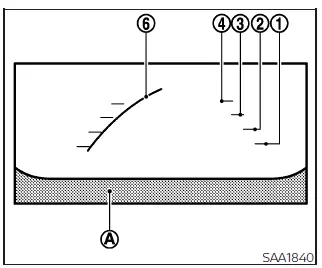
Front view
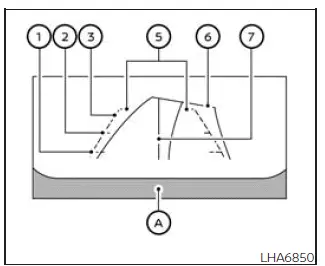
Rear view
The Nissan Frontier display includes guide lines that indicate approximate vehicle width and estimated distance to nearby objects based on vehicle body reference line A.
These guide lines assist drivers when parking, maneuvering in confined areas, or positioning the vehicle close to curbs and obstacles.
Distance guide lines:
These lines indicate approximate distances measured from the Nissan Frontier vehicle body:
- Red line 1: approximately 1.5 ft (0.5 m)
- Yellow line 2: approximately 3 ft (1 m)
- Green line 3: approximately 7 ft (2 m)
- Green line 4: approximately 10 ft (3 m) (if so equipped)
Vehicle width guide lines 5
These lines indicate the approximate width of the Nissan Frontier and help drivers judge side clearance when reversing or maneuvering in restricted spaces.
Predicted course lines 6
The predicted course lines display the estimated path that the Nissan Frontier will follow based on current steering-wheel position.
As the steering wheel is turned, the predicted course lines automatically move to reflect the anticipated vehicle trajectory.
The amount of movement shown by the predicted course lines corresponds directly to steering-wheel input.
When the steering wheel is centered in the straight-ahead position, the Nissan Frontier predicted course lines will not be displayed.
These dynamic guide lines can help improve parking precision and make reversing maneuvers easier in tight spaces.
Center guide line 7
The center guide line indicates the approximate centerline of the Nissan Frontier and can be used to help align the vehicle when parking or positioning it within a lane or parking space.
The front camera view automatically becomes unavailable when the Nissan Frontier exceeds approximately 6 mph (10 km/h).
This limitation helps ensure that the system remains focused on low-speed maneuvering situations where camera assistance is most beneficial.
NOTE:
NOTE:
When the Nissan Frontier monitor is displaying the front camera view and the steering wheel is turned approximately 90 degrees or less from the straight-ahead position, both the left and right predicted course lines 6 will be visible on the display.
When the steering wheel is turned beyond approximately 90 degrees, only the predicted course line on the side opposite the direction of the turn will remain visible. This helps provide a clearer representation of the Nissan Frontier projected travel path during sharp steering maneuvers.
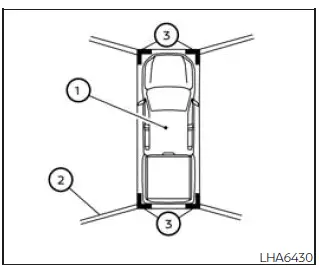
Bird's-eye view
The Nissan Frontier bird's-eye view provides a virtual overhead image of the vehicle and its surroundings, helping the driver better understand vehicle positioning during parking and low-speed maneuvering.
This view can be particularly useful when aligning the Nissan Frontier within a parking space or when navigating tight areas with limited clearance.
The vehicle icon 1 represents the current position of the Nissan Frontier. Keep in mind that the apparent distance between objects displayed in the bird's-eye view may differ slightly from their actual distance from the vehicle.
Areas that cannot be captured by the camera system 2 are displayed in black to indicate portions of the surroundings that remain outside the cameras' field of view.
After the ignition switch is placed in the ON position, the non-viewable area 2 is highlighted in yellow for approximately three seconds when the bird's-eye view first appears.
Additionally, the Nissan Frontier system highlights non-visible corner areas in red, and these warning zones will flash during the first three seconds 3 as a reminder to carefully check the vehicle surroundings.
This visual warning feature helps increase driver awareness of areas that may contain obstacles not fully visible on the display.
WARNING
- Objects displayed in the Nissan Frontier bird's-eye view generally appear farther away than they actually are. Always verify distances visually before moving the vehicle.
- Tall objects such as curbs, walls, posts, vehicles, or other vertical structures may appear misaligned or may not be displayed accurately where different camera images merge together.
- Objects located above camera height cannot be shown by the Intelligent Around View Monitor system.
- The bird's-eye view image may become misaligned if the position of one or more cameras changes due to impact, vibration, repairs, or environmental conditions.
- Lines painted on the road surface may appear uneven or misaligned at the seams between camera views. The further these lines extend away from the Nissan Frontier, the greater the apparent misalignment may become.
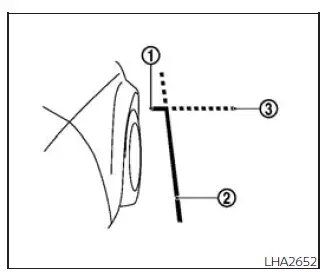
Front-side view
Guiding lines
The Nissan Frontier front-side camera view includes guide lines designed to help estimate vehicle dimensions and improve positioning accuracy when maneuvering near obstacles, curbs, or narrow passages.
These guide lines provide visual references for the approximate front end and side boundaries of the vehicle.
The front-of-vehicle line 1 indicates the approximate location of the front bumper and front edge of the Nissan Frontier.
The side-of-vehicle line 2 indicates the approximate overall width of the Nissan Frontier, including the exterior mirrors.
The extensions 3 of both the front line 1 and side line 2 are displayed as green dotted lines to help drivers estimate additional clearance beyond the visible guide lines.
This view can be especially useful when parking close to curbs or positioning the Nissan Frontier accurately within confined spaces.
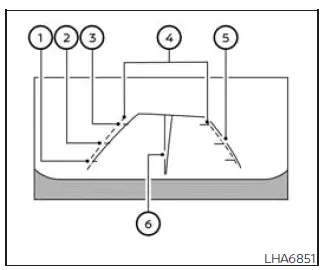
Rear-wide view
Rear-wide view
The Nissan Frontier rear-wide view displays a significantly wider viewing area across the entire screen, allowing drivers to observe blind-corner regions on both sides of the vehicle while reversing.
This expanded perspective is particularly helpful when backing out of parking spaces or areas where cross traffic and pedestrians may approach from either side.
The rear-wide camera view provides an approximate 180-degree field of vision behind the Nissan Frontier.
Predicted course lines are not displayed when the rear-wide view mode is active.
Distance guide lines
The displayed distance guide lines indicate approximate distances measured from the rear of the Nissan Frontier:
- Red line 1: approximately 1.5 ft (0.5 m)
- Yellow line 2: approximately 3 ft (1 m)
- Green line 3: approximately 7 ft (2 m)
Vehicle width guide lines 4
These guide lines indicate the approximate width of the Nissan Frontier and assist the driver when judging available space while reversing.
Predicted course lines 5
The predicted course lines display the estimated path of the Nissan Frontier based on steering-wheel position.
Whenever the steering wheel is turned, the predicted course lines automatically adjust to show the anticipated vehicle trajectory.
The lines move according to steering input and are hidden when the steering wheel remains in the straight-ahead position.
Center guide line 6
The center guide line indicates the approximate centerline of the Nissan Frontier and can be used as a reference when aligning the vehicle within parking spaces or other confined areas.
By combining the bird's-eye view, front-side camera, rear-wide view, and guide-line system, the Nissan Frontier Intelligent Around View Monitor helps improve driver confidence during parking and low-speed maneuvering while maintaining awareness of surrounding obstacles.
Difference between predicted and actual distances Nissan Frontier third generation
Basic Information
The Nissan Frontier Intelligent Around View Monitor displays guide lines that serve as approximate visual references only. The position of these guide lines on the screen may not always correspond exactly to real-world distances.
Objects located on inclines, declines, uneven terrain, or objects that extend into the vehicle's path may appear at distances different from those indicated by the monitor. Because of these variables, drivers should never rely solely on the displayed guide lines when maneuvering the Nissan Frontier.
Whenever there is uncertainty regarding object clearance or distance, stop the vehicle, visually inspect the area, use the mirrors, or safely exit the Nissan Frontier to verify the position of nearby objects.
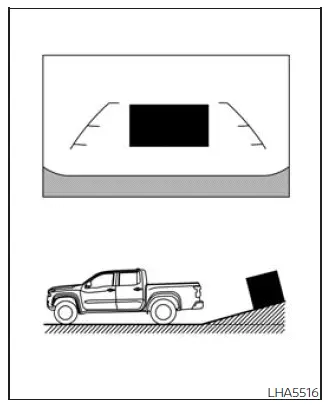
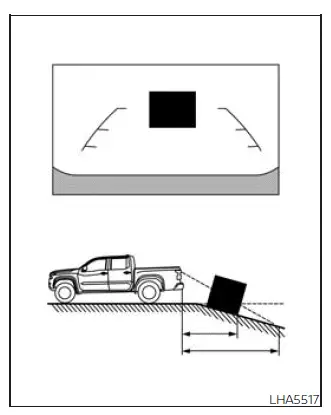
Backing up on a steep uphill
When reversing the Nissan Frontier on a steep uphill grade, the distance guide lines and vehicle-width guide lines may appear closer than the actual distance to surrounding objects.
As a result, obstacles located on the incline are generally farther away than they appear on the display screen. Drivers should account for this visual difference when judging available space.
Backing up on a steep downhill
When reversing downhill, the Nissan Frontier guide lines may appear farther away than the actual distance.
In this situation, obstacles and surrounding objects may be significantly closer to the vehicle than they appear on the monitor. Additional caution should always be exercised when backing down a slope.
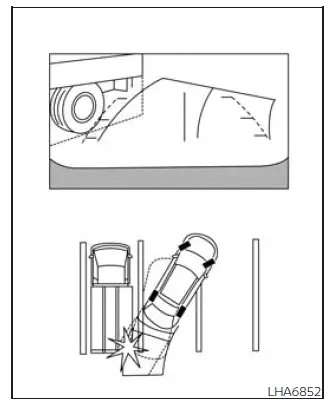
Backing up near a projecting object
The Nissan Frontier may appear to clear an obstacle when viewed on the monitor display. However, if the object extends into the vehicle's actual reversing path, contact may still occur.
Always inspect the surroundings directly and do not rely exclusively on the camera image when maneuvering near overhanging or projecting objects.
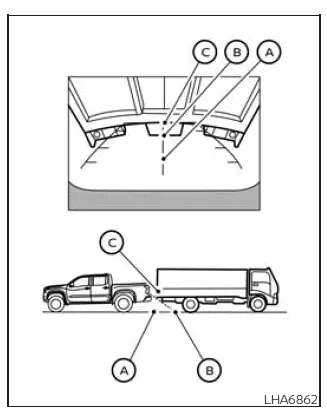
Backing up behind a projecting object
Position C may appear farther away than position B on the Nissan Frontier display.
However, position C may actually be located at approximately the same distance as position A. If an object extends into the backing path, the Nissan Frontier could make contact with it while reversing toward position A, despite what appears to be sufficient clearance on the screen.
How to park with predicted course lines Nissan Frontier SUV
WARNING
- If different tire sizes are installed on the Nissan Frontier, the predicted course lines may not accurately represent the actual vehicle path.
- On snow-covered, icy, muddy, or slippery surfaces, differences may exist between the predicted course lines and the actual path traveled by the vehicle.
- If the Nissan Frontier battery becomes discharged or is disconnected, the predicted course lines may
appear incorrectly.
If this occurs, perform the following procedures:
- Turn the steering wheel from full left lock to full right lock while the engine is running.
- Drive the Nissan Frontier in a straight line for more than five minutes.
- If the steering wheel is turned while the ignition switch is in the ACC position, the predicted course lines may not display correctly.
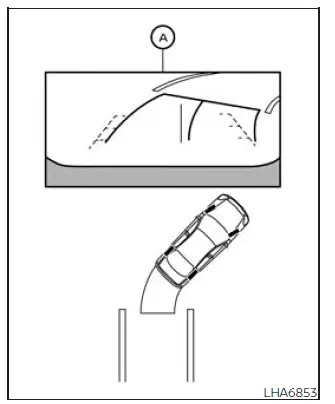
1. Carefully inspect the parking area and surrounding environment to confirm that it is safe before positioning the Nissan Frontier.
2. Shift the transmission into the R (Reverse) position. The rear camera image will appear on display screen A.
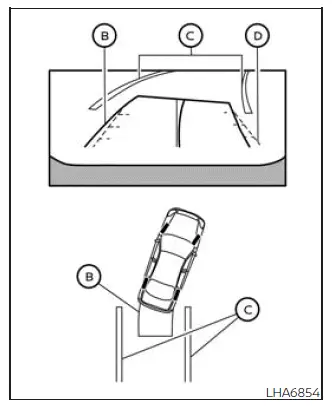
3. Slowly reverse the Nissan Frontier while adjusting the steering wheel so that the predicted course lines B enter the parking space C.
4. Continue steering until the vehicle-width guide lines D become parallel with the parking space boundaries C while using the predicted course lines as a visual reference.
5. Once the Nissan Frontier is completely positioned within the parking space, move the shift lever to the P (Park) position and firmly apply the parking brake.
The predicted course line feature can help improve parking accuracy, but drivers should always verify clearance by looking around the vehicle directly.
How to switch the display
With the ignition switch in the ON position, press the CAMERA button or shift the Nissan Frontier into the R (Reverse) position to activate the Intelligent Around View Monitor.
The system can display multiple camera layouts depending on the current gear position. Pressing the CAMERA button cycles through the available Nissan Frontier camera views.
If the shift lever is in the R (Reverse) position, available display modes include:
- Rear view/bird's-eye view split screen
- Rear view/front-side view split screen
- Rear-wide view
If the shift lever is in the P (Park) or D (Drive) position, available display modes include:
- Front view/bird's-eye view split screen
- Front view/front-side view split screen
The Nissan Frontier display automatically switches away from the Intelligent Around View Monitor screen when:
- The shift lever is in the D (Drive) position and vehicle speed exceeds approximately 6 mph (10 km/h).
- A different screen or menu is selected by the driver.
Off-road mode
When the shift lever is not in R (Reverse), selecting 4LO using the Nissan Frontier 4WD selector changes the Intelligent Around View Monitor operation as follows:
- Selecting 4LO automatically activates the Intelligent Around View Monitor and displays the front view/front-side view split-screen layout.
- If the ignition switch is placed in the ON position while 4LO is already selected, the front view/front-side view split screen appears automatically.
- If the Nissan Frontier enters 4LO while the bird's-eye view is displayed, the passenger-side portion of the display changes to the front-side camera view.
While operating in off-road mode, the Intelligent Around View Monitor remains active and will not immediately return to the previous screen.
The Nissan Frontier display automatically returns to the previously selected screen approximately three minutes after exiting the 4LO position.
Adjusting the screen
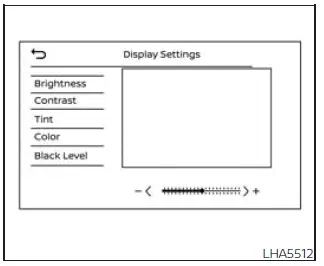
1. Touch the "Settings" key.
2. Select the "Camera" key.
3. Touch the "Display Settings" option.
4. Select the desired adjustment category including "Brightness", "Contrast", "Tint", "Color", or "Black Level".
5. Adjust the selected setting using the "+" or "-" controls on the Nissan Frontier touch-screen display.
These adjustments allow drivers to optimize image visibility according to lighting conditions and personal preference.
NOTE:
Never adjust Nissan Frontier Intelligent Around View Monitor display settings while the vehicle is moving. Always stop the vehicle in a safe location and ensure the parking brake is fully applied before making adjustments.
Intelligent Around View Monitor system limitations Nissan Frontier third generation
Basic Information
WARNING
The following limitations apply to the Nissan Frontier Intelligent Around View Monitor system.
Failure to understand and follow these limitations while operating the Nissan Frontier may increase the risk of a collision, resulting in serious injury, property damage, or death.
- Do not use the Nissan Frontier Intelligent Around View Monitor when the outside mirrors are folded or stored. In addition, always verify that the tailgate is completely closed and securely latched before relying on any camera view.
- The apparent distance between objects displayed on the Nissan Frontier monitor and their actual distance may vary. Always confirm object location visually before moving the vehicle.
- The camera system is mounted in the front grille, both outside mirrors, and above the rear license plate. Never place stickers, accessories, cargo, covers, or any other objects that may obstruct these cameras.
- When washing the Nissan Frontier with high-pressure water equipment, avoid directing water jets at the camera housings. Water intrusion may cause condensation inside the lens, electrical malfunction, fire hazards, or electric shock.
- Do not strike, hit, or apply excessive force to any camera assembly. The cameras are precision optical devices, and damage may result in malfunction, reduced image quality, fire hazards, or electrical failure.
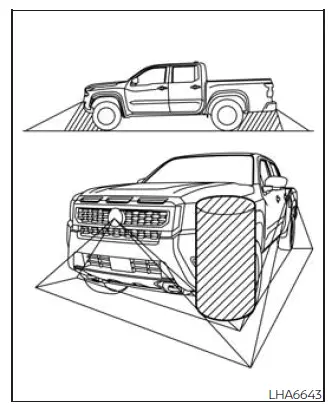
The Nissan Frontier Intelligent Around View Monitor cannot display every object surrounding the vehicle, nor does it provide warnings for all moving objects.
In front-view and rear-view modes, objects located beneath the bumper or directly on the ground may not appear on the display.
In bird's-eye view mode, tall objects positioned near the seams where camera images are merged may not be displayed correctly or may not appear at all.
Drivers should always use mirrors, direct observation, and safe driving practices in addition to the Nissan Frontier camera system.
The following conditions are considered normal operating characteristics and do not indicate a malfunction of the Nissan Frontier Intelligent Around View Monitor:
- A slight delay may occur when switching between different camera views.
- In extremely hot or cold weather conditions, the display may not show objects with maximum clarity.
- Strong sunlight or bright reflections shining directly into a camera lens may reduce image visibility.
- The display image may flicker when exposed to certain fluorescent or artificial lighting sources.
- Colors displayed on the Nissan Frontier monitor may differ slightly from the actual colors of surrounding objects.
- In dark environments, objects may appear less distinct and color reproduction may be reduced.
- The sharpness and image quality of individual camera views may vary slightly within the bird's-eye display.
- Do not apply wax directly to any camera lens. If wax residue is present, remove it using a clean cloth lightly dampened with a diluted mild cleaning solution, then wipe the lens dry.
Weather conditions such as rain, fog, snow, mud, road salt, and dust may temporarily affect camera performance and image quality.
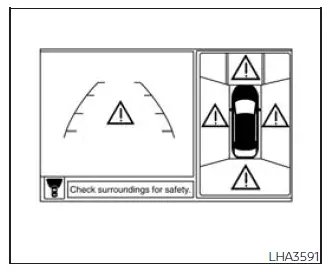
System temporarily unavailable
When the "!" icon appears on the Nissan Frontier display screen, the Intelligent Around View Monitor has detected an abnormal operating condition.
Although normal driving operation is generally not affected, camera functionality may be limited until the condition is corrected.
It is recommended that the Nissan Frontier system be inspected if this warning remains active.
For proper diagnosis and repair, it is recommended that you visit an authorized NISSAN dealer.
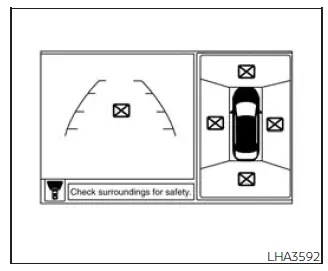
When the "[X]" icon appears on the Nissan Frontier monitor, the camera system may be experiencing temporary electronic interference from nearby equipment or external electronic devices.
This condition typically does not affect the normal driving characteristics of the vehicle; however, if the warning occurs frequently or remains visible for extended periods, the system should be inspected.
For continued reliability of the Nissan Frontier Intelligent Around View Monitor, it is recommended that you visit an authorized NISSAN dealer for service.
System maintenance
CAUTION
- Do not use alcohol, benzine, paint thinner, abrasive cleaners, or harsh chemicals on the Nissan Frontier camera lenses. These substances may cause discoloration, lens damage, or deterioration of image quality.
- Avoid scratching, striking, or damaging any camera component, as monitor performance and image clarity may be adversely affected.
If dirt, mud, rain, road grime, snow, ice, or debris accumulates on any of the Nissan Frontier cameras 1, the Intelligent Around View Monitor may not display surrounding objects clearly.
To clean a camera lens, gently wipe it using a soft cloth dampened with a diluted mild cleaning solution. After cleaning, wipe the lens again with a clean dry cloth to remove any remaining moisture.
Regular cleaning and inspection of all Nissan Frontier camera lenses will help maintain optimal image quality, accurate visibility, and reliable operation of the Intelligent Around View Monitor system.